


The Clock Is Ticking: Why Businesses Must Act Now
Microsoft will officially end support for Windows 10 in October 2025, leaving millions of devices without security updates. For businesses, that’s not just an inconvenience, it’s a compliance risk, a security liability, and a potential productivity drain.
Migrating from Windows 10 to Windows 11 is more than a system upgrade. It’s a chance to modernize infrastructure, enhance endpoint security, and prepare for a cloud-first future. The sooner your organization transitions, the smoother and less costly the process will be.
In this guide, we’ll walk you through every step of the Windows 10 to 11 migration process and plan your rollout to overcome common challenges and optimize performance post-upgrade, ensuring a smooth and low-risk transition.
Why the Migration Can’t Wait Until 2025
Many IT leaders are asking: “Can I upgrade Windows 10 to Windows 11 for free?” Yes, eligible devices can. But the bigger question is when to migrate, not if.
Delaying the Windows 10 upgrade to Windows 11 means facing:
- Increased security vulnerabilities once patches stop.
- Compatibility issues with new Microsoft tools and enterprise integrations.
- Higher migration costs due to rushed transitions near the deadline.
If you’re unsure what the end of Windows 10 support actually means for your systems, downtime risk, and compliance, check out our in-depth blog, What Happens to Your Systems After End of Windows 10 Support?. It explains the specific risks businesses face after 2025 and why proactive planning is crucial long before the cutoff date.
The most forward-thinking companies are already drafting their Windows 11 migration plans to stay ahead.
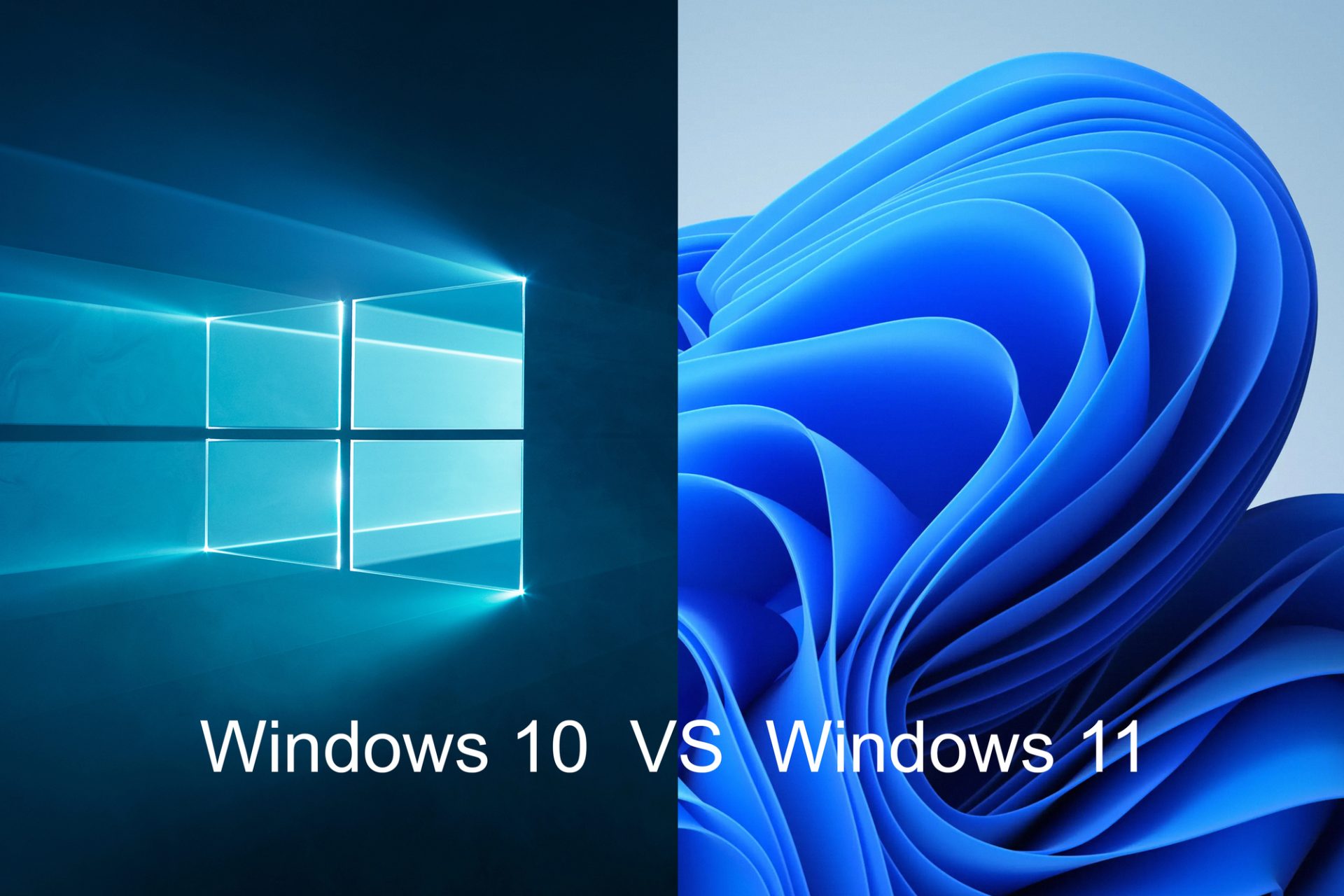
Windows 10 vs Windows 11: What’s Changing for Businesses
The differences between Windows 10 and Windows 11 go far beyond design. Windows 11 is built for hybrid work, remote collaboration, and Zero Trust security environments.
Stronger Security Architecture
Windows 11 introduces built-in protections like TPM 2.0, Secure Boot, and virtualization-based security, aligning perfectly with modern compliance frameworks.
Productivity & Usability Upgrades
Features such as Snap Layouts, better window management, and improved taskbar experience make multitasking seamless for hybrid teams.
Cloud & Endpoint Integration
Businesses leveraging Microsoft 365, Azure AD, and Intune will benefit from simplified Windows 11 deployment and remote management capabilities.
Bottom line: The transition to Windows 11 strengthens security, improves user experience, and aligns IT with modern digital workplace goals.
Pre-Migration Readiness Checklist
Before diving into how to upgrade Windows 10 to 11, every business must conduct a readiness assessment. This step prevents costly disruptions later.
1. Assess Hardware Compatibility
Check whether devices meet the Windows 11 hardware requirements. Use Microsoft’s PC Health Check or enterprise compatibility tools.
Key specs include TPM 2.0, Secure Boot, 4GB RAM, and 64GB storage.
2. Audit Software and Dependencies
Inventory all applications. Identify legacy software that may not meet Windows 11 upgrade requirements and plan for updates or alternatives.
3. Backup Critical Data
Data loss is non-negotiable. Back up everything before migration, especially shared drives, databases, and user profiles.
4. Plan Licensing and Deployment Strategy
Define your Windows 11 rollout plan:
- Manual upgrades for small teams
- Intune or SCCM for larger enterprises
- Partner-assisted Windows 11 enterprise upgrades for complex environments
These steps ensure a clean, compliant, and disruption-free migration.
Step-by-Step: How to Upgrade Windows 10 to Windows 11 for Business
Every organization’s Windows 11 migration plan should follow a structured approach. Here’s how to do it right:
Step 1: Assess & Plan
Start by defining which systems qualify under the Windows 10 to Windows 11 upgrade requirements. Segment hardware into “ready,” “upgrade later,” and “replace” categories.
Step 2: Pilot Deployment
Select a small group of devices or departments for a test rollout. Use this to identify compatibility issues and collect user feedback.
Step 3: Full Rollout
Execute the full Windows 11 deployment in phases. Schedule upgrades during off-peak hours, communicate clearly with end users, and maintain IT support availability during rollout days.
Step 4: Post-Migration Optimization
After migration, verify policy enforcement, patch updates, and monitor system performance. Use this phase to fine-tune settings and enhance endpoint security.
To minimize downtime and address technical hurdles during your Windows 11 deployment, our Houston-based expert IT Support team can assist with planning, troubleshooting, and end-user support. We ensure your Windows 10 to 11 migration is efficient, compliant, and fully optimized.
Common Challenges (and How to Overcome Them)
Migrating from Windows 10 to Windows 11 can feel overwhelming. Here are common roadblocks and solutions:
- Hardware Non-Compliance: Some devices won’t meet Windows 11 system requirements. Plan hardware refreshes early to avoid delays.
- Legacy Application Issues: Test apps in a sandbox or virtual machine. If an app fails, look for updates or modern alternatives.
- Employee Resistance: Change management is key. Offer training and highlight the productivity benefits of Windows 11.
- Downtime Risk: Pilot testing, staged rollouts, and proper backups minimize disruption.
In-House vs. Partner-Assisted Migration
Should your business handle the Windows 11 upgrade guide internally or outsource it to experts?
In-House:
- ✅ Full control over timelines and systems.
- ❌ Requires skilled IT staff and longer testing periods.
IT Partner:
- ✅ Faster execution and risk mitigation.
- ✅ Proven tools and experience with large-scale rollouts.
- ❌ Higher upfront cost (often offset by efficiency gains).
For mid-sized and enterprise companies, partnering with a Managed IT Services Provider in Houston ensures a smooth Windows 10 to Windows 11 migration without disrupting operations.
Conclusion: Start Planning Before It’s Too Late
By the time Windows 10 support ends, businesses that are delayed will face rushed timelines, unexpected expenses, and unnecessary security risks.
Treat the Windows 10 upgrade to Windows 11 as a strategic modernization move, not a last-minute chore. The earlier you plan, the more control you retain over cost, compliance, and productivity.
Ready to future-proof your IT infrastructure?
Schedule a Windows 11 Readiness Assessment with our team today to build your custom migration roadmap.
FAQs: Windows 10 to 11 Migration for Businesses
1. How long does it take to upgrade each computer?
The upgrade itself usually takes 1-4 hours per device. With PennComp’s Windows 11 upgrade service, we schedule installations in batches or after business hours to avoid work interruptions.
2. What are the biggest risks during migration?
The main risks are software conflicts, data loss if not backed up properly, and downtime. With proper planning and testing, these risks are completely avoidable.
3. How do I check if my current office computers can even run Windows 11?
Microsoft has a free tool called “PC Health Check.” You can run it on any machine, and it will tell you exactly what’s missing.
4. What if we start the upgrade and something goes wrong halfway through?
This is why we set “restore points” and keep fresh backups. If an installation fails, we can quickly roll the computer back to exactly how it was on Windows 10, so the employee can keep working while we figure out what went wrong.
5. Why should we let PennComp handle our Windows 10 to 11 migration?
We plan the upgrade carefully, test your business-critical software, back up everything, and schedule installations to avoid downtime. Our focus is a smooth transition with zero surprises.


